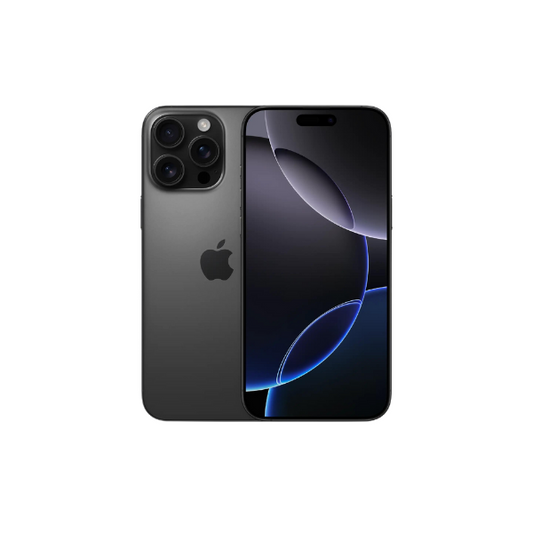






The iPhone 17 Pro features a dedicated side camera button that enhances user access to the camera and facilitates capturing moments. Instead of relying solely on on-screen controls, this physical button offers quicker response and better handling, especially during one-handed use or when taking landscape shots. It is built to support both casual photography and more controlled shooting situations.
With iOS 26, the side camera button gains expanded control options that allow users to adjust how it behaves. These settings help reduce accidental activation while giving faster access to key camera actions. When configured properly, the button becomes a practical tool for taking photos and recording videos with greater ease and consistency.
What is the Working of the iPhone 17 Pro Side Camera Button?
The side camera button is a physical control that lets you access the Camera app instantly and capture content without touching the screen. Compared to standard camera controls, it supports multiple actions such as launching the camera, taking photos, and recording videos with more precision. This makes it useful for quick shots, landscape photography, and steady video recording. It also helps improve grip and stability during longer shooting sessions.
How to Enable the Side Camera Button?
Before you start using the side camera button, it is important to check that the feature is properly enabled in your device settings. A correct setup ensures fast response and prevents missed actions while taking photos or recording videos.
- Open Settings on your iPhone and scroll down to locate the Camera section.
- Tap Camera > Camera Control to access all related button options.
- Turn the Camera Control feature on to activate the side camera button.
- Choose your preferred press type, such as single press, double press, or press and hold, based on how you plan to use the camera.
Once activated, the button works as a dedicated camera trigger across supported modes.
Steps to Take Photos Using the Side Camera Button
The use of the side camera button for photos offers better control and quicker response compared to on-screen capture. It is designed to help users take clear shots with minimal effort, even in fast-moving situations.
Here is how the side camera button improves photo capture:
- First, open the Camera app on your iPhone.
- Then, press the side camera button to take a photo quickly.
- Using a physical button helps keep the phone steady, so photos are clearer.
- Holding the phone feels more secure, especially when using one hand.
- Quick response makes it useful for outdoor shots and sudden moments.
Steps to Recording Videos With the Side Camera Button
You can also use the side camera button to record videos:
- First, open the Camera app on your iPhone.
- Press and hold the side camera button to start recording.
- Release the side camera button to stop recording.
- Using a physical button helps keep the phone steady while recording.
- Holding the phone feels more secure during filming.
This action works efficiently in standard video mode and helps maintain stability while filming.
Dual Capture Video Mode
Dual Capture lets you record video using both the front and rear cameras at the same time. This is useful for reactions, tutorials, and vlogging.
- First, open the Camera app and select Video mode.
- Tap the six-dot icon and enable Dual Capture.
- Use the side camera button to start and stop recording smoothly.
- Using a physical button helps keep your phone steady while filming.
- Holding the phone feels more secure during recording.
Which Settings Allow Camera Control Customisation in iOS 26?
iOS 26 adds deeper control options for the side camera button. From the Camera Control settings, you can:
- Adjust gesture sensitivity to control how easily the button responds. You can fine-tune this to avoid accidental presses while still capturing shots quickly.
- Choose which camera tools appear first in the interface so you have quick access to your most-used settings for faster shooting.
- Enable focus and exposure lock controls to keep your subjects sharp and correctly lit during both photos and videos.
- Limit accidental activation by configuring press types and response settings, ensuring the button only triggers when you intend to use it.
These options allow you to tailor the button to your shooting style, whether for casual use or content creation.
Expert Tips for Better Results You Can Use Today
Using the side camera button effectively can greatly improve your photo and video results. These tips help you get more control and stability while shooting.
- Use double-press activation to prevent accidental launches and ensure the camera opens only when intended.
- Combine the side camera button with focus and exposure lock to maintain consistent image quality.
- Keep your iOS updated to access the latest improvements and bug fixes for smoother camera performance.
- Hold the phone securely and maintain a steady grip to avoid shaky photos and videos.
- Pair the camera button usage with compatible accessories like iPhone 17 Pro cases or tripods for better stability and protection.
Pairing the button with protective accessories, such as iPhone 17 Pro cases available on Roobotech, helps keep your device secure during frequent use.
Conclusion
Mastery of the iPhone 17 Pro side camera button transforms photo and video capture. Simple setup, flexible controls, and powerful iOS 26 options give faster access and better control over your camera. Applying these tips and using the right accessories from Roobotech ensures you get the most value from your iPhone 17 Pro camera every day.
FAQ's
What is the side camera button on the iPhone 17 Pro?
The side camera button is a physical control that allows quick access to the Camera app. It helps users take photos and record videos more efficiently. It is designed to improve handling and speed when capturing moments.
How do I enable the side camera button?
Go to Settings > Camera > Camera Control and turn it on. You can also choose single press, double press, or press-and-hold actions. Proper setup ensures a fast and reliable response to the button.
Can the side camera button record videos?
Yes, pressing and holding the side camera button starts video recording. Releasing it stops recording for easy control. This method helps maintain stability and avoids shaky footage.
What is Dual Capture mode?
Dual Capture records video from both front and rear cameras at the same time. It is useful for vlogs, reactions, and tutorials. This mode allows capturing multiple perspectives simultaneously for creative content.
How can I avoid accidental presses?
Adjust gesture sensitivity in Camera Control settings. Using double-press activation also helps prevent unintended triggers. Correct configuration ensures that the side camera button works only when needed.